




15
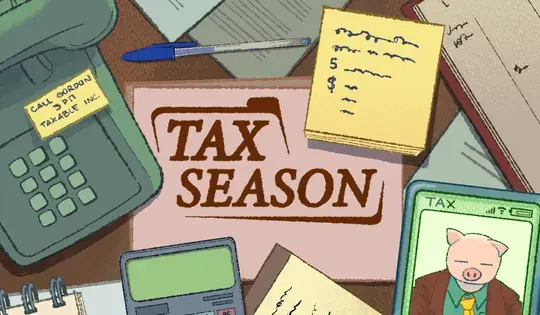
 Tax Season: Audit Adventure icon

Tax Season: Audit Adventure

Mis à jour:
Apr 01, 2026
Compétences:
Taxes
Plateformes:
Browser, Mobile

Instructions

Become a tax pro! You were hired to do your client's taxes and your boss, Gordon P. Ledger, is going to make you the best accountant ever! Tap to proceed through the dialogue.

When you start your job, your client's messages will appear on the left side of the screen. When you see a message with a green paper icon next to it, tap that icon to print the paper. This paper is a claim from your client and the first type of claim you'll get is for income. When you have printed all the income claims, drag the paper into the income drawer. Once all papers are in the drawer, tap and drag on the drawer for it to shut, calculate the total income, and print out the total income. Once you have the total income, drag it to the Super Tax Calculator to get the calculated tax. Once you have the calculated tax form, drag it to the client for Gordon to review. If you make any mistakes, Gordon will be sure to let you know!

If you end up printing a claim you don't need or mess up a form along the way, drag that paper to the red shredder to get rid of it.

Each year, there may be some changes to how the taxes are done and can introduce new things such as deductions and credits. On the right side of your screen is your tax guide - which will be updated each year to reflect any new changes. Tap on the red tab with the notebook to open the guide and read through it.

Become a tax pro! You were hired to do your client's taxes and your boss, Gordon P. Ledger, is going to make you the best accountant ever! Left Click to proceed through the dialogue.

When you start your job, your client's messages will appear on the left side of the screen. When you see a message with a green paper icon next to it, click that icon to print the paper. This paper is a claim from your client and the first type of claim you'll get is for income. When you have printed all the income claims, click on the paper and drag it into the income drawer. Once all papers are in the drawer, click on the drawer and slide it down for the drawer to shut, calculate the total income, and print out the total income. Once you have the total income, drag it to the Super Tax Calculator to get the calculated tax. Once you have the calculated tax form, click on it and drag it to the client for Gordon to review. If you make any mistakes, Gordon will be sure to let you know!

If you end up printing a claim you don't need or mess up a form along the way, drag that paper to the red shredder to get rid of it.

Each year, there may be some changes to how the taxes are done and can introduce new things such as deductions and credits. On the right side of your screen is your tax guide - which will be updated each year to reflect any new changes. Click on the red tab with the notebook to open the guide and read through it.

Mis à jour:
Apr 01, 2026
Compétences:
Taxes
Plateformes:
Browser, Mobile

Instructions

Become a tax pro! You were hired to do your client's taxes and your boss, Gordon P. Ledger, is going to make you the best accountant ever! Tap to proceed through the dialogue.

When you start your job, your client's messages will appear on the left side of the screen. When you see a message with a green paper icon next to it, tap that icon to print the paper. This paper is a claim from your client and the first type of claim you'll get is for income. When you have printed all the income claims, drag the paper into the income drawer. Once all papers are in the drawer, tap and drag on the drawer for it to shut, calculate the total income, and print out the total income. Once you have the total income, drag it to the Super Tax Calculator to get the calculated tax. Once you have the calculated tax form, drag it to the client for Gordon to review. If you make any mistakes, Gordon will be sure to let you know!

If you end up printing a claim you don't need or mess up a form along the way, drag that paper to the red shredder to get rid of it.

Each year, there may be some changes to how the taxes are done and can introduce new things such as deductions and credits. On the right side of your screen is your tax guide - which will be updated each year to reflect any new changes. Tap on the red tab with the notebook to open the guide and read through it.

Become a tax pro! You were hired to do your client's taxes and your boss, Gordon P. Ledger, is going to make you the best accountant ever! Left Click to proceed through the dialogue.

When you start your job, your client's messages will appear on the left side of the screen. When you see a message with a green paper icon next to it, click that icon to print the paper. This paper is a claim from your client and the first type of claim you'll get is for income. When you have printed all the income claims, click on the paper and drag it into the income drawer. Once all papers are in the drawer, click on the drawer and slide it down for the drawer to shut, calculate the total income, and print out the total income. Once you have the total income, drag it to the Super Tax Calculator to get the calculated tax. Once you have the calculated tax form, click on it and drag it to the client for Gordon to review. If you make any mistakes, Gordon will be sure to let you know!

If you end up printing a claim you don't need or mess up a form along the way, drag that paper to the red shredder to get rid of it.

Each year, there may be some changes to how the taxes are done and can introduce new things such as deductions and credits. On the right side of your screen is your tax guide - which will be updated each year to reflect any new changes. Click on the red tab with the notebook to open the guide and read through it.