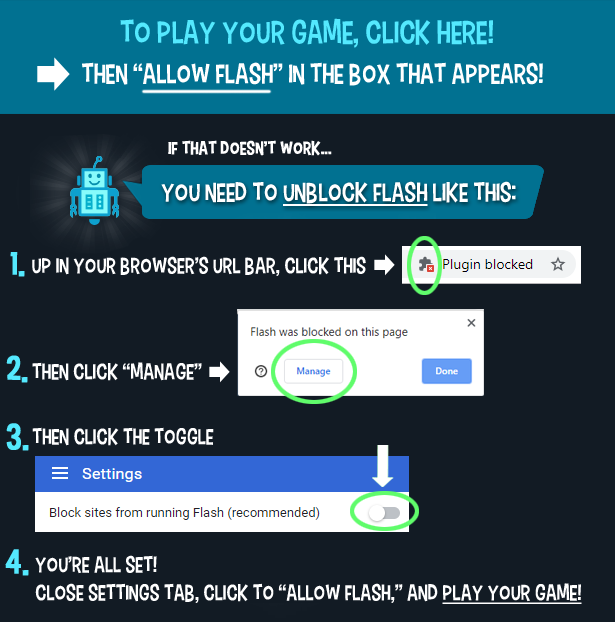



Sorry... this game is not playable in your browser.

This Flash game is currently not playable in your browser, but we're working on a fix! Come back regularly to see if it's ready to play.
Most browsers no longer support Flash. Affected games are indicated by


You'll Also Like
Game content reviewed byAntonia Gates
Instructions
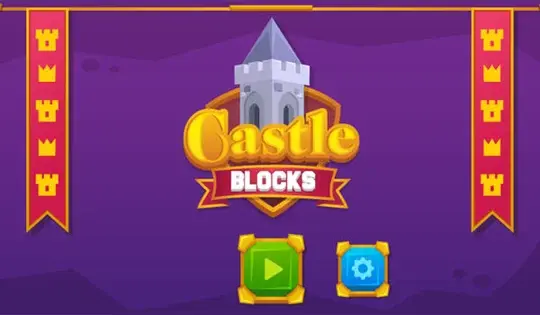
Build your kingdom...literally! Select your background and building tiles as you make your very own kingdom. On the left side of the screen are 3 flags to click on.
- The green flag changes the background image. Tap the image you want for your background.
- The orange flag shows you different castle tiles you can use. There will be purple flags next to those tiles - tapping those changes the style of the block. Drag the tile you want onto the grid.
- The blue flag shows you different nature pieces and people that you can place. Drag the item or person you want onto the grid.
If you want to undo your last move, tap the purple counterclockwise arrow on the right side of the screen. If you want to redo your last move, tap the purple clockwise arrow on the right side of the screen. If you want to start over, tap the red X to remove everything from the grid. Once you're finished with your kingdom, tap the green checkmark and admire it!
Build your kingdom...literally! Select your background and building tiles as you make your very own kingdom. On the left side of the screen are 3 flags to click on.
- The green flag changes the background image. Click on the image you want for your background.
- The orange flag shows you different castle tiles you can use. There will be purple flags next to those tiles - clicking on those changes the style of the block. Click on the tile you want and drag it onto the grid.
- The blue flag shows you different nature pieces and people that you can place. Click on the item or person you want and drag it onto the grid.
The Castle Blocks can't be overlapped, but you can put a person or item in front of a castle block.
If you want to undo your last move, click on the purple counterclockwise arrow on the right side of the screen. If you want to redo your last move, click on the purple clockwise arrow on the right side of the screen. If you want to start over, click on the red X to remove everything from the grid. Once you're finished with your kingdom, click on the green checkmark and admire it!
Just a moment while your advertisement loads
Advertisement
Just a moment while your advertisement loads
Advertisement
You'll Also Like
Game content reviewed byAntonia Gates
Instructions
Build your kingdom...literally! Select your background and building tiles as you make your very own kingdom. On the left side of the screen are 3 flags to click on.
- The green flag changes the background image. Tap the image you want for your background.
- The orange flag shows you different castle tiles you can use. There will be purple flags next to those tiles - tapping those changes the style of the block. Drag the tile you want onto the grid.
- The blue flag shows you different nature pieces and people that you can place. Drag the item or person you want onto the grid.
If you want to undo your last move, tap the purple counterclockwise arrow on the right side of the screen. If you want to redo your last move, tap the purple clockwise arrow on the right side of the screen. If you want to start over, tap the red X to remove everything from the grid. Once you're finished with your kingdom, tap the green checkmark and admire it!
Build your kingdom...literally! Select your background and building tiles as you make your very own kingdom. On the left side of the screen are 3 flags to click on.
- The green flag changes the background image. Click on the image you want for your background.
- The orange flag shows you different castle tiles you can use. There will be purple flags next to those tiles - clicking on those changes the style of the block. Click on the tile you want and drag it onto the grid.
- The blue flag shows you different nature pieces and people that you can place. Click on the item or person you want and drag it onto the grid.
The Castle Blocks can't be overlapped, but you can put a person or item in front of a castle block.
If you want to undo your last move, click on the purple counterclockwise arrow on the right side of the screen. If you want to redo your last move, click on the purple clockwise arrow on the right side of the screen. If you want to start over, click on the red X to remove everything from the grid. Once you're finished with your kingdom, click on the green checkmark and admire it!