



15
 Mini Sudoku by LinkedIn icon
Mini Sudoku by LinkedIn
ジャンル:
更新しました:
Jun 12, 2026
リリース:
Jun 12, 2026
プラットフォーム:
Browser

指示

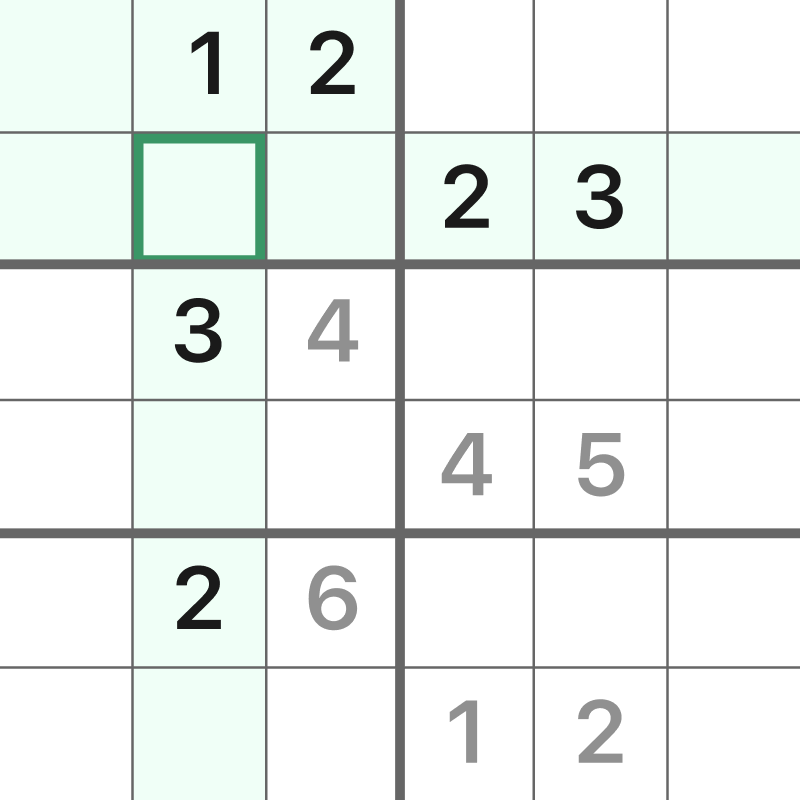
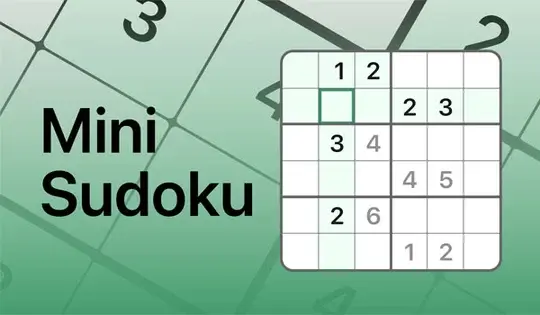
Put every number in its place! This bite-sized version of Sudoku only has 6 rows and columns. Your goal is to make sure each cell has a number 1-6 without repeating in a row, column, or box. Click on a square in the grid, then click on a number to place it. You can also type the number in on your keyboard.

If you place a repeating number in a row, column, or box, the cell will turn red. If you fill a row, column, or box correctly, that area will be highlighted in green for a brief moment! If you don't see the green highlight after filling in a section fully, it means a number is not in the correct spot.

You can click the Notes button to write notes in the cells for where to place the next number. If you get stuck, click on the Hint button to get a hint!

TIP: To see how many instances of a number need to be placed in the grid, click on Settings, then click "Count remaining numbers." This will show you how many instances of a number need to be placed in the grid!

すべての数字を正しい位置に配置しましょう!このミニ版数独は、行と列がそれぞれ6つずつしかありません。目標は、行、列、ボックス内で重複することなく、すべてのセルに1~6の数字を配置することです。グリッド内のマスをクリックし、次に数字をクリックして配置します。キーボードで数字を入力することもできます。

行、列、またはボックスに同じ数字を繰り返すと、そのセルが赤色に変わります。行、列、またはボックスを正しく入力すると、その領域が短時間緑色にハイライト表示されます。セクションを完全に入力しても緑色のハイライトが表示されない場合は、数字が正しい位置に入力されていないことを意味します。

「メモ」ボタンをクリックすると、次の数字を入力する場所をセルにメモとして書き込むことができます。行き詰まった場合は、「ヒント」ボタンをクリックするとヒントが表示されます。

ヒント:グリッド内に特定の数字をいくつ配置する必要があるかを確認するには、「設定」をクリックし、「残りの数字をカウント」をクリックしてください。これにより、グリッド内に特定の数字をいくつ配置する必要があるかが表示されます。
ゲームの進行状況

0 XP
ジャンル:
更新しました:
Jun 12, 2026
リリース:
Jun 12, 2026
プラットフォーム:
Browser

指示

Put every number in its place! This bite-sized version of Sudoku only has 6 rows and columns. Your goal is to make sure each cell has a number 1-6 without repeating in a row, column, or box. Click on a square in the grid, then click on a number to place it. You can also type the number in on your keyboard.

If you place a repeating number in a row, column, or box, the cell will turn red. If you fill a row, column, or box correctly, that area will be highlighted in green for a brief moment! If you don't see the green highlight after filling in a section fully, it means a number is not in the correct spot.

You can click the Notes button to write notes in the cells for where to place the next number. If you get stuck, click on the Hint button to get a hint!

TIP: To see how many instances of a number need to be placed in the grid, click on Settings, then click "Count remaining numbers." This will show you how many instances of a number need to be placed in the grid!

すべての数字を正しい位置に配置しましょう!このミニ版数独は、行と列がそれぞれ6つずつしかありません。目標は、行、列、ボックス内で重複することなく、すべてのセルに1~6の数字を配置することです。グリッド内のマスをクリックし、次に数字をクリックして配置します。キーボードで数字を入力することもできます。

行、列、またはボックスに同じ数字を繰り返すと、そのセルが赤色に変わります。行、列、またはボックスを正しく入力すると、その領域が短時間緑色にハイライト表示されます。セクションを完全に入力しても緑色のハイライトが表示されない場合は、数字が正しい位置に入力されていないことを意味します。

「メモ」ボタンをクリックすると、次の数字を入力する場所をセルにメモとして書き込むことができます。行き詰まった場合は、「ヒント」ボタンをクリックするとヒントが表示されます。

ヒント:グリッド内に特定の数字をいくつ配置する必要があるかを確認するには、「設定」をクリックし、「残りの数字をカウント」をクリックしてください。これにより、グリッド内に特定の数字をいくつ配置する必要があるかが表示されます。